Getting a new Android phone does not mean you have to leave your GB WhatsApp chats behind. If your old phone is still available and contains your conversations, you can prepare a backup and move the relevant data to the new device.
The key is to create the backup before switching phones and avoid deleting GB WhatsApp from the old device until you have confirmed that your chats are available on the new one.
Back Up GB WhatsApp on Your Old Phone
Start with the phone that currently contains your GB WhatsApp chats.
Open the app's backup settings and create a fresh chat backup. Wait until the backup process has completely finished.
Afterward, check your phone's storage for the corresponding backup files.
Do not immediately reset or erase the old phone. Keep the original data available until the transfer has been successfully completed.
Check Your Backup Files
A backup is only useful if the files are actually available.
Use a file manager to check the storage folders associated with GB WhatsApp. Depending on your Android version and the GB WhatsApp build, folder names and locations can differ.
If you find database files, keep the original files untouched.
It is also useful to check whether your photos, videos, documents, and voice messages are stored separately from the chat database.
Move the Backup to Your New Phone
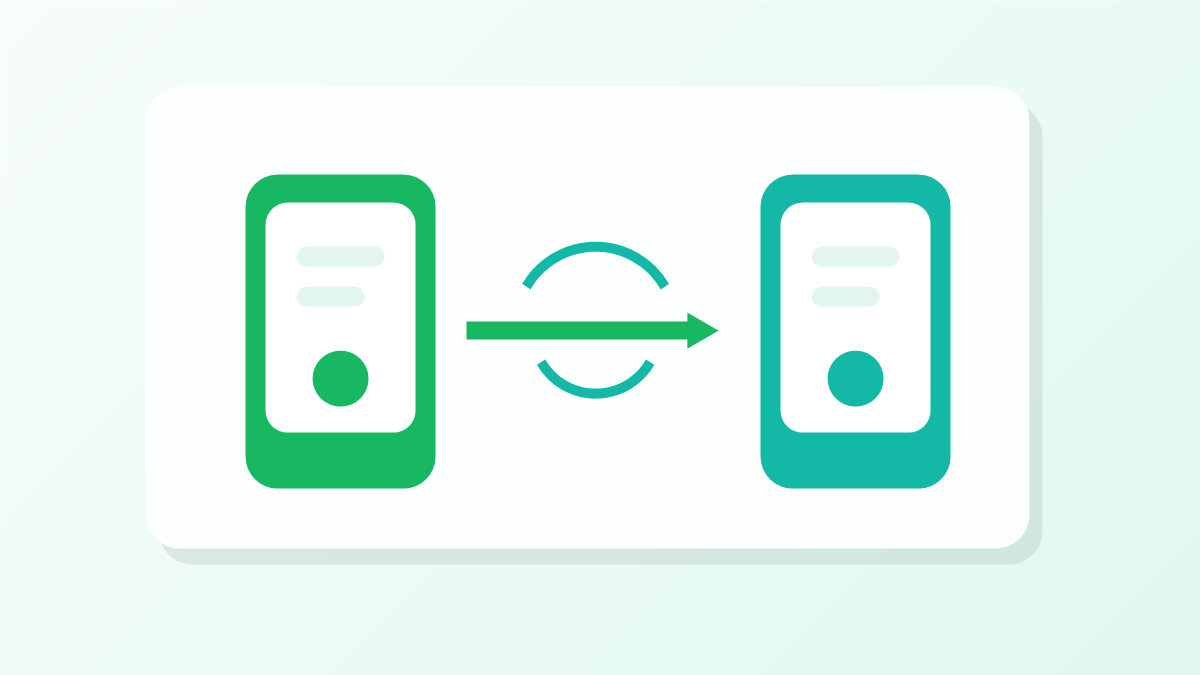
Transfer the required backup files from the old phone to the new Android device.
You can use a USB cable, computer, local file transfer, or another method that allows you to copy the files without modifying them.
Place the backup in the appropriate storage location on the new phone before completing the GB WhatsApp setup.
The exact folder can vary between Android versions and application builds, so do not assume that an old folder structure will always work on a newer device.
Install a Compatible GB WhatsApp Version
Install the GB WhatsApp version you intend to use on the new phone.
If you are moving from an older build to a newer one, make sure the new version supports your Android version.
Avoid installing several different GB WhatsApp builds while trying to restore the same backup. This can make it harder to determine which application is accessing the data.
Use the Same Phone Number
During setup, enter the same phone number associated with the chats you are transferring.
Make sure the country code is correct and complete the verification process.
Using a different number may prevent the existing backup from being recognized.
Allow the Required Permissions
When GB WhatsApp asks for access to files, photos, or other storage-related permissions, review the request carefully.
Android may restrict access to files that were copied from another device.
If the app cannot access the backup, check its permissions under the Android app settings.
The exact permission names depend on your Android version.
Restore Your Chats
If GB WhatsApp detects the backup, it may offer a Restore option during setup.
Select the restore option and wait for the process to complete.
Large backups can take some time, particularly when they contain many conversations and media files.
Do not delete the backup or shut down the phone while restoration is still running.
What If Your Chats Are Restored but Media Is Missing?
Your chat database and media files may be stored separately.
You might see your conversations correctly but find that some photos, videos, documents, or voice messages are unavailable.
In that situation, check whether the media folders were also copied from the old phone.
If the original media still exists on the old phone, transfer the relevant folders to the new device as well.
What If the Backup Is Not Detected?
If GB WhatsApp does not find your backup, check these points:
- Correct phone number: Make sure you are verifying the same number used on the old phone.
- Backup location: Confirm that the database file is stored where the current app can access it.
- Permissions: Check Android's storage and media permissions.
- File integrity: Make sure the backup was copied completely.
- Version compatibility: An older backup may not work correctly with every application build.
Do not repeatedly move or rename the original backup until you have made a separate copy.
Can You Transfer GB WhatsApp to a Different Android Phone?
Yes, the process can work when the backup and application version are compatible with the new device.
The main difference is that Android's storage system can behave differently between phones. A folder that was accessible on your old phone may be protected or located somewhere else on the new one.
For this reason, checking the storage permissions and backup location is particularly important after changing devices.
Transfer GB WhatsApp Without the Old Phone
If you no longer have access to the old phone, the process becomes more difficult.
You need an existing backup that can be accessed from the new device.
If no usable backup remains, there may be no reliable way to reconstruct the old conversations.
This is why it is better to prepare the backup while the old phone is still working.
Don't Erase Your Old Phone Too Early
One of the most common mistakes during a phone upgrade is wiping the old device immediately after copying a few files.
Keep the old phone until you have verified:
- Your chats appear correctly.
- Recent conversations are present.
- Photos and videos are available.
- Important documents have transferred.
- GB WhatsApp opens and works normally.
Only after checking these items should you consider deleting the old data.
Frequently Asked Questions
Can I transfer GB WhatsApp chats to another Android phone?
Yes, if you have a usable backup and the backup is compatible with the GB WhatsApp installation on the new device.
Do I need the same phone number?
For a backup associated with your previous account, you should use the same phone number during setup.
Why isn't my GB WhatsApp backup showing on the new phone?
The backup may be in the wrong location, inaccessible because of Android permissions, incomplete, or incompatible with the installed version.
Will my photos and videos transfer with my chats?
Not always. Chat databases and media files can be stored separately, so check that the relevant media folders have also been transferred.
Can I transfer chats without the old phone?
Only if you already have a usable backup that can be accessed on the new phone. Without the old device or a backup, recovery options are limited.
Final Thoughts
The safest way to transfer GB WhatsApp chats to a new phone is to create a fresh backup before switching devices, copy the backup carefully, and keep the old phone until the restoration has been verified.
Do not rush to reset the old device. Confirm that your chats and important media are available on the new phone first. This gives you a second chance to fix the transfer if something goes wrong.